How to Create a Professional Logo with a Transparent Background
Your brand logo needs to adapt to dark headers, light packaging, and multi-colored marketing materials. Discover how to create a clean logo with a transparent background.
The Power of Flexible Branding Assets
A brand logo is the face of a company. It appears on websites, business cards, email signatures, product packaging, and social media icons. Because a logo is used in so many different contexts, it must be highly versatile.
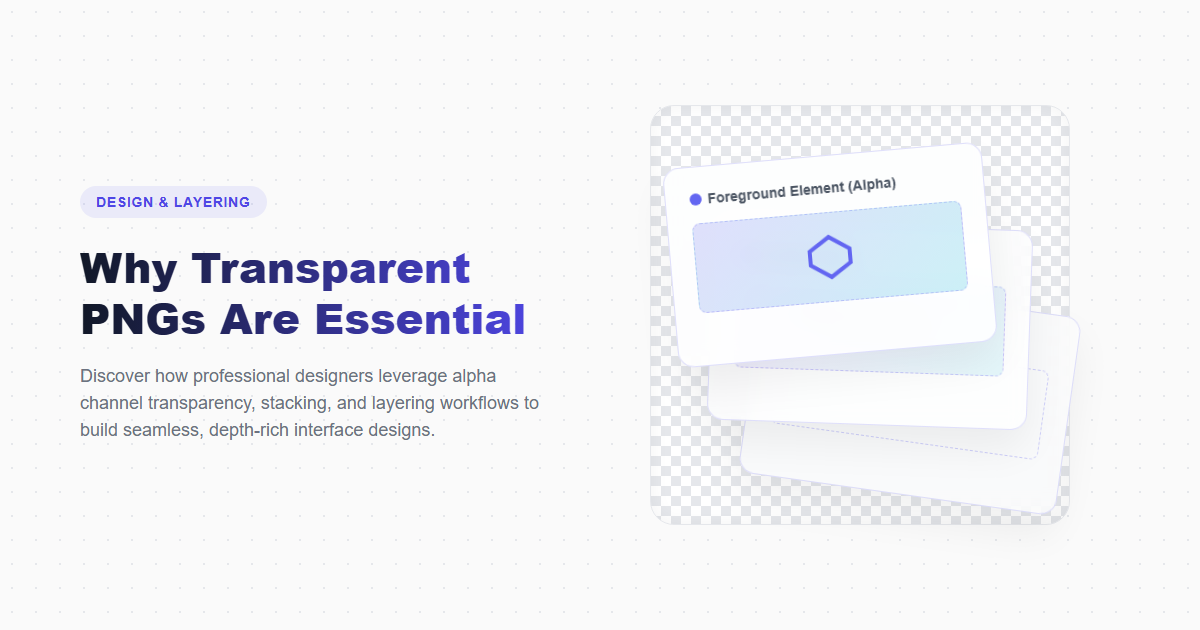
If you save your logo with a solid background, you restrict where you can place it. A round logo with a white background will look out of place when placed on a dark navigation bar or a colored brochure. Designing your logo with a transparent PNG background is essential for maintaining a professional, cohesive brand identity.
This guide walks you through the step-by-step process of creating a professional logo with a transparent background using free online design tools.
Key Principles of Digital Logo Design
Before diving into the technical design process, keep these design principles in mind:
1. Keep it Simple
Simple logos are easier to recognize and scale. Avoid overly complex graphics or thin lines that can become illegible at smaller sizes.
2. Focus on Visual Balance
Use grid systems and alignment settings to ensure your logo is balanced and looks cohesive.
3. Maintain Color Contrast
Make sure your logo remains legible on both dark and light backgrounds. Creating a dark version and a light version of your brand mark is a common best practice.
Step-by-Step Guide to Creating a Transparent Logo
Use an Online Logo Maker
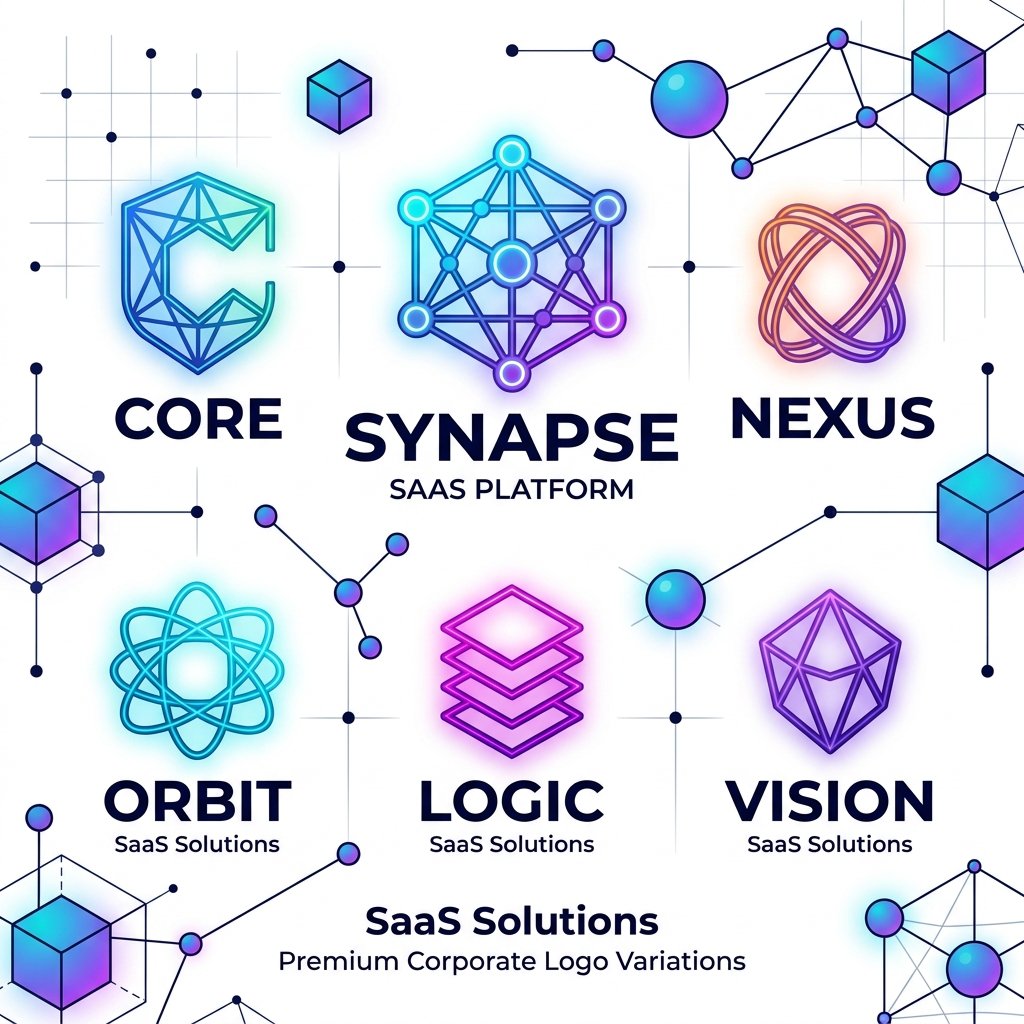
Go to the imagpng.com AI Logo Maker. Select your industry, enter your brand name, and choose your preferred style presets and color palettes.
Customize the Design Layout
Select a template and customize the typography, color schemes, and icon shapes. Adjust the spacing and alignment to balance your design.
Export with Transparency
Once you are happy with the design, click "Export." Select PNG as the file format and make sure the "Transparency" option is checked. This adds the alpha channel to keep your background transparent.
Optimize for Web Display
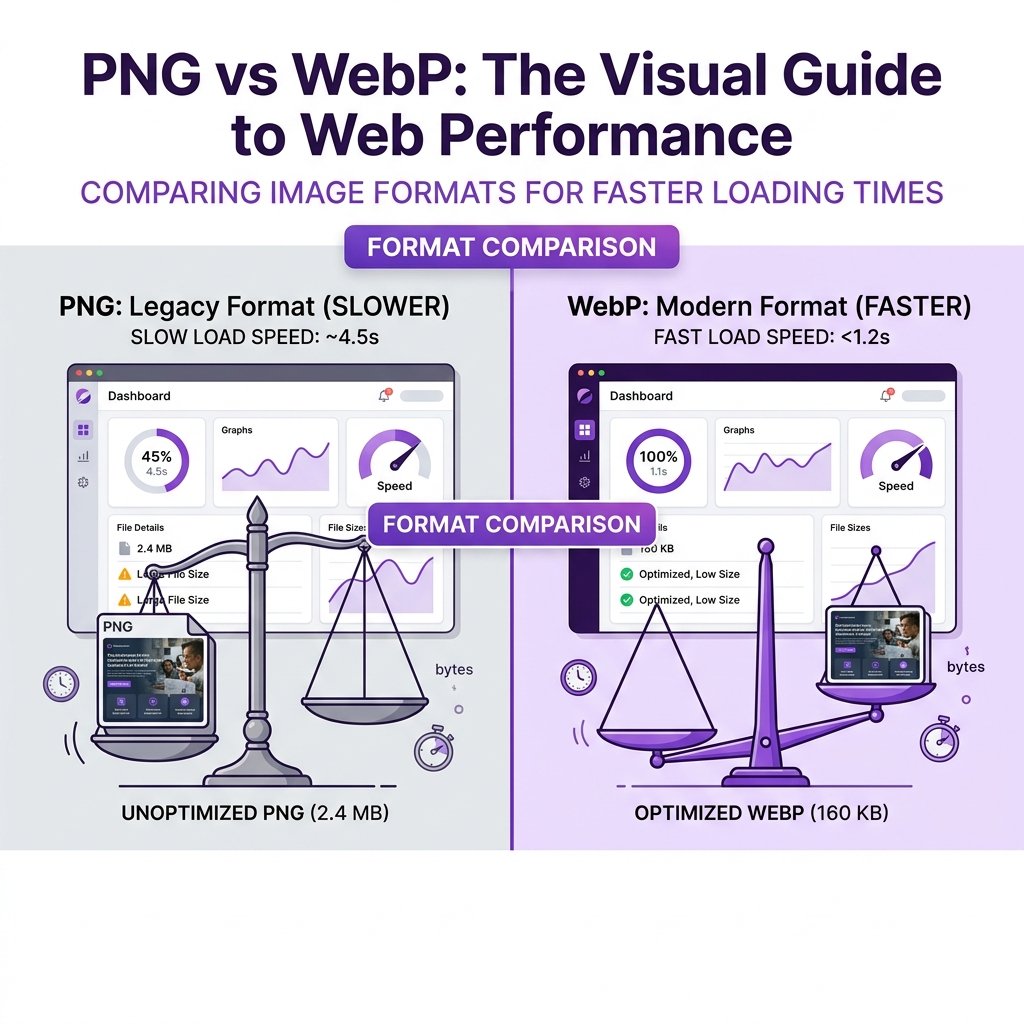
Run your logo PNG through our PNG compressor to reduce the file size, helping your website header load faster.
Export Formats: PNG vs SVG
| Format Parameter | PNG (Raster Graphic) | SVG (Vector Graphic) |
|---|---|---|
| Scalability | Pixel-based (can blur when upscaled) | Infinite (coordinates-based, scales perfectly) |
| File Size | Larger (depends on resolution) | Very Small (lightweight code representation) |
| Transparency Support | Yes (Alpha channel transparency) | Yes (Native path transparency) |
| Best For | Email signatures, app icons, presentation slides | Website headers, large print signage, source templates |
Design Advantages
- Adapts cleanly to light, dark, and multi-colored backgrounds.
- Provides a professional look that fits modern web designs.
- Allows for layered layouts and drop shadow effects.
- Widely supported across different apps and web platforms.
Design Constraints
- PNG logos can look blurry if scaled up past their original dimensions.
- Requires converting colors to sRGB to ensure accurate display on screens.
- Transparent edges can sometimes blend poorly if the contrast is low.
Frequently Asked Questions
What is the difference between transparent PNG and flat JPG logos?
A transparent PNG logo has its background pixels set to transparent, allowing it to layer over dark or multi-colored layouts. A flat JPG logo includes a solid background (usually white), which can create awkward borders when placed on non-white backgrounds.
What resolution should my logo PNG be?
A width of 1000px to 2000px is recommended for standard logos. This provides enough detail for web displays, email signatures, and small print materials.
Can I convert a PNG logo back into an SVG?
Yes. You can use vectorization software to trace the pixels of your transparent PNG logo and convert them into vector coordinates, exporting the design as an SVG.
Why does my logo look blurry on Retina displays?
High-density screens (like Retina displays) require double the pixel density to look sharp. To prevent blurriness, upload your logo at twice the size it will display at on your site, using CSS to scale it down.
Should I design my logo in sRGB or CMYK?
Use sRGB for web and screen displays. If you plan to print your logo, convert a copy of the design to CMYK to ensure colors print accurately on paper or packaging.
Create Your Brand Logo with AI Instantly
Use our AI logo maker to design a professional, custom brand logo with a transparent background for free in just a few clicks.