How to Reduce PNG File Size for Faster Website Performance
Large, unoptimized PNG assets are a primary cause of slow loading speeds. Discover how to shrink PNG files to improve your Core Web Vitals and SEO rankings.
Why Website Performance Matters
In today's digital landscape, speed is crucial. If a website takes longer than three seconds to load, over 40% of visitors will abandon the site. Search engines like Google prioritize fast-loading websites, using performance metrics like Core Web Vitals to determine search engine rankings.
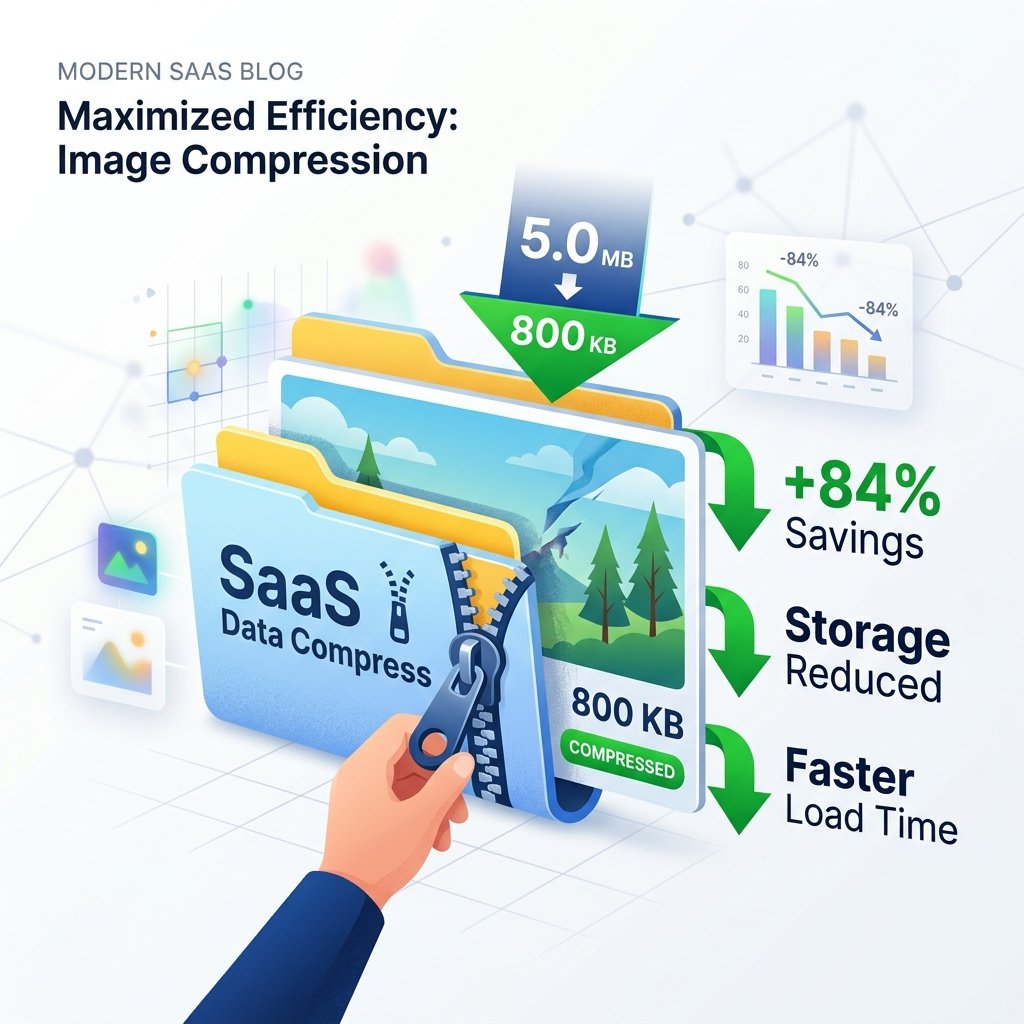
One of the most common causes of slow websites is unoptimized images, particularly high-resolution transparent PNG assets. While these files are great for design, they can be quite large. By utilizing a PNG compressor, you can shrink file sizes and improve page load speeds without sacrificing visual quality.
This guide outlines practical strategies for reducing PNG file sizes to optimize your website's performance and SEO.
Understanding Page Speed Metrics
Google's Core Web Vitals evaluate user experience through three key metrics:
- Largest Contentful Paint (LCP): Measures loading performance. It tracks how long it takes for the largest content element (usually a hero image or banner) to render on the screen.
- Interaction to Next Paint (INP): Measures responsiveness to user interactions.
- Cumulative Layout Shift (CLS): Measures visual stability, checking if page elements shift unexpectedly during loading.
Unoptimized images can hurt your LCP score if they take too long to download. Additionally, if you don't define image dimensions in your CSS, they can cause layout shifts, hurting your CLS score. Optimizing your images is essential for improving these metrics.
Techniques to Reduce PNG File Sizes
1. Convert PNG-32 to PNG-8
PNG-32 supports TrueColor with millions of colors, but PNG-8 is an indexed format supporting up to 256 colors. For simple icons, flat illustrations, and logos, converting to PNG-8 can reduce file size by up to 70% with negligible quality loss.
2. Resize to Display Dimensions
Avoid uploading a 4000x4000 pixel image if it will only display as a 400x400 pixel card on your website. Use our PNG editor to resize the image to the exact dimensions it will display at on your page.
3. Convert to Next-Gen Formats (WebP)
WebP is a modern image format that supports both transparency and lossless compression. It typically produces files that are 30% smaller than equivalent PNGs. You can use our PNG converter to easily convert your assets to WebP.
Optimizing PNGs: Step-by-Step Impact
| Optimization Step | Action Taken | File Size (Example) | LCP Impact |
|---|---|---|---|
| Original Asset | Raw export from Photoshop (3000x3000px) | 4.2 Megabytes | Poor (3.8 seconds) |
| 1. Resized | Scaled down to 800x800px | 450 Kilobytes | Average (1.8 seconds) |
| 2. Compressed | Stripped metadata & applied color quantization | 120 Kilobytes | Good (0.8 seconds) |
| 3. Converted to WebP | Converted to next-gen format | 85 Kilobytes | Excellent (0.5 seconds) |
Performance Benefits
- Speeds up page load times, lowering bounce rates.
- Boosts mobile user experience, even on slower data networks.
- Improves LCP and CLS scores for higher Google SEO rankings.
- Reduces hosting costs by saving bandwidth.
Optimization Caveats
- Converting to PNG-8 can result in color banding on complex images.
- Highly compressed WebP files might not render on very old web browsers.
- Resizing can lose fine details if you scale the image down too much.
Frequently Asked Questions
What is Google Core Web Vitals?
Core Web Vitals are a set of page speed, responsiveness, and visual stability metrics that Google uses to evaluate user experience and determine website search rankings.
Should I convert all website PNGs to WebP?
Yes, in most cases. WebP is highly optimized, supporting both transparency and compression with smaller file sizes than PNG. It's a great choice for modern websites.
How do I test my website's page speed?
You can use free tools like Google PageSpeed Insights, GTmetrix, or Pingdom to test your website's performance and get optimization recommendations.
What is dithering?
Dithering is a technique that blends neighboring pixels to create the illusion of smooth gradients in images with limited color palettes, helping to prevent color banding in PNG-8 files.
Will resizing an image reduce its file size?
Yes. Reducing an image's width and height reduces the number of pixels it contains, leading to a smaller file size.
Speed Up Your Website Instantly
Shrink PNG files by up to 80% or convert them to WebP using our free online PNG tools to improve your site speed and SEO rankings.